---
title: Salestrekker extract for Stryd
description: For brokers using Salestrekker as their CRM, it is possible to extract Settled Deals to import into Stryd
---
[Skip to content](https://knowledge.stryd.au/salestrekker-extract-for-stryd#main-content)
English - Australia
Show submenu for translations
[Submit a query or issue](https://knowledge.stryd.au/kb-tickets/new?hsLang=en-au)

Open main navigation
Close main navigation
- English - Australia
Show submenu for translations
- [Submit a query or issue](https://knowledge.stryd.au/kb-tickets/new)
- [Book a 15 min support call](https://meetings-ap1.hubspot.com/sara-arganese/15-min-support-call-sara)
[Book a 15 min support call](https://meetings-ap1.hubspot.com/sara-arganese/15-min-support-call-sara)
How can we help you?
- There are no suggestions because the search field is empty.
1. [Stryd Broker](https://knowledge.stryd.au/?hsLang=en-au)
2. [How to use Stryd](https://knowledge.stryd.au/how-to-use-stryd?hsLang=en-au)
11 March 2026
# Salestrekker extract for Stryd
## This guide walks you through the steps to generate a custom Salestrekker extract for Stryd
### **Salestrekker 1.0**
#### **Step 1: Create a New Report**
1. #### Log into **Salestrekker**.
2. #### Click on **Reports** in the main menu.
3. #### Select **Add New** to create a new report. 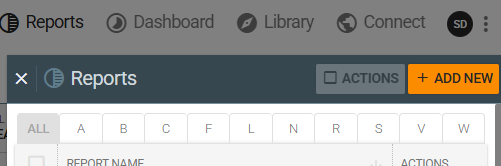
4. #### Enter a **name** for your report.
5. #### Click on the **A** icon to switch to **Advanced Reports** mode. 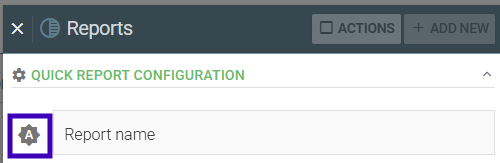
---
#### **Step 2: Add Data Sources**
- #### Expand **Deal Fields** by clicking the arrow icon.
- #### Click the bullet points to display available data tables.

You’ll now select several data sources to include the relevant information.
1. **Deal – General Information**
Select the required fields under Deal – General Information as shown in the below image.
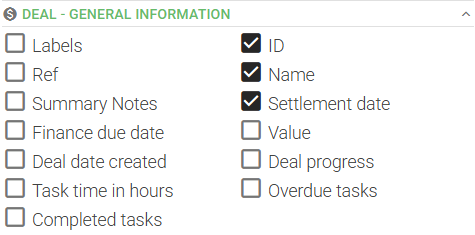
### **2. Contact 1 – General Information**
- #### Select all fields required under **Contact 1 – General Information** as shown below. 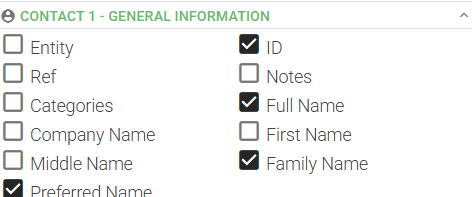
### **3. Contact 1 – Basic Contact Information**
- #### Add all relevant fields under **Contact 1 – Basic Contact Information**. 
### **4. Contact 2 – General Information**
- #### Include all necessary fields under **Contact 2 – General Information**. 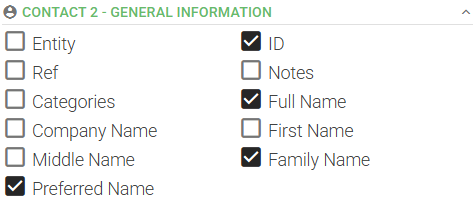
### **5. Contact 2 – Basic Contact Information**
- #### Select all relevant fields for **Contact 2 – Basic Contact Information**. 
#### **6. Deal – Home Loan Split**
#### Add the following fields from Deal - Home Loan Split to capture full loan details:
- #### Lender
- #### Amount 1–6 (to capture all splits)
- #### Product 1–6
- #### Loan Purpose 1–6
- #### Interest Rate Type 1–6
- #### Interest Rate 1–6
### **7. Broker Tools – Security Details**
- #### Add the fields under **Broker Tools – Security Details**. 
---
#### **Step 3: Apply a Deal Status Filter**
1. #### Under **Deal Filters**, apply a filter for **Deal Status = Settled Loans**. This ensures the extract includes only settled deals. **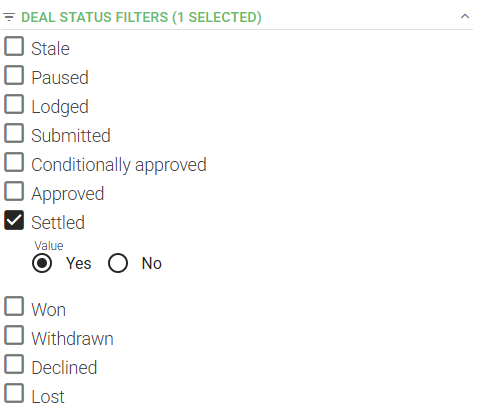**
---
#### **Step 4: Generate and Export the Report**
1. #### Click **Apply** to create the report. Salestrekker will update and display the results. **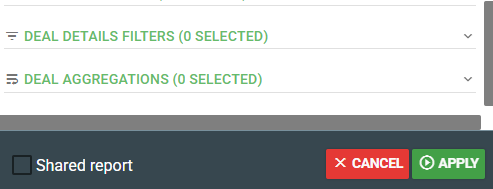**
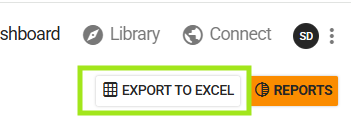
1. #### Once loaded, click **Export to Excel** to download your extract.
#### 
### **Salestrekker 2.0**
Exporting the data Stryd needs is simpler in this version.
Run and download the following reports:
- Applicants report
- Sales report
### **Providing the data to the Stryd team**
To securely provide this data to us, use the Submit a Query form in Stryd Help or via this link [Submit a query or issue](https://knowledge.stryd.au/kb-tickets/new?hsLang=en-au)
Our team will be in touch when the upload has been completed.
- [FAQs](https://knowledge.stryd.au/faqs?hsLang=en-au)
- [How to use Stryd](https://knowledge.stryd.au/how-to-use-stryd?hsLang=en-au)
[](http://stryd.au)
[mailto:email@email.com](mailto:email@email.com)
Copyright © 2025, Moneycatcha Pty Ltd